
If you’ve heard about ChatGPT but haven’t tried it yet, or you’ve signed up but aren’t sure how to use it effectively, this tutorial will walk you through everything you need to get started. By the end, you’ll understand how to set up an account, navigate the interface, and write prompts that get you useful, accurate results.
Step 1: Creating a ChatGPT Account
To get started, visit the official ChatGPT website and sign up using an email address, or through a Google or Microsoft account for faster registration. The free version gives you access to a capable AI model with some usage limitations, which is more than enough for most beginners to explore the tool’s capabilities.
Once registered, you’ll land on the main chat interface, a simple text box where you’ll type your questions or requests.

Step 2: Understanding the Interface
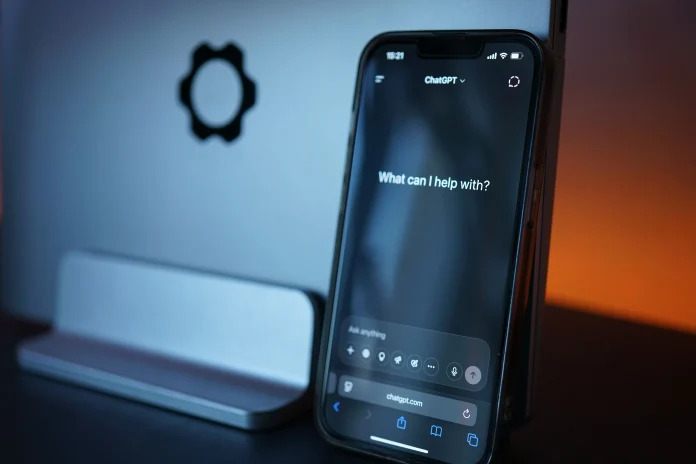
The ChatGPT interface is intentionally simple:
- The text box at the bottom of the screen is where you type your messages.
- The conversation history appears in the main window, showing your messages and ChatGPT’s responses.
- The sidebar lets you start new conversations and access previous chat history.
- Settings and account options are typically accessible through a menu icon, where you can adjust preferences and manage your subscription.
Spend a few minutes exploring these elements so you feel comfortable navigating the platform before diving into more complex tasks.
Step 3: Writing Your First Prompt
A “prompt” is simply the message or question you type to ChatGPT. For your first interaction, try something simple, like asking it to explain a concept or draft a short piece of text.
Example first prompt: “Explain how photosynthesis works in simple terms.”
Notice how ChatGPT responds conversationally, breaking down the concept in an easy-to-understand way. This gives you a sense of the tool’s baseline capabilities before moving to more specific tasks.
Step 4: Writing Effective Prompts
The quality of your results depends heavily on how you phrase your requests. Here are key principles for writing effective prompts:
Be Specific
Instead of “Write about marketing,” try “Write a 300-word blog introduction about email marketing strategies for small businesses.”
Provide Context
If you’re working on a specific project, briefly explain the context. For example, “I’m writing a resignation letter for a marketing job I’ve held for two years, and I want to maintain a professional but warm tone.”
Specify the Format
If you need a particular structure, mention it directly: “Give me this as a bulleted list” or “Format this as a table with three columns.”
Set the Tone
Specify the tone you’re looking for, such as formal, casual, humorous, or persuasive, to better match your intended use case.
Step 5: Refining Responses Through Follow-Up Messages
One of ChatGPT’s most useful features is its ability to maintain context across a conversation. If the first response isn’t quite right, you can ask for adjustments without starting over.
Example follow-up: “Can you make this shorter and more casual in tone?”
This iterative approach refining responses through follow-up messages often produces better results than trying to write the perfect prompt on your first attempt.
Step 6: Using ChatGPT for Common Tasks
Here are some practical, beginner-friendly use cases to try:
Drafting Emails
Ask ChatGPT to draft professional emails for various situations, then personalize the output before sending.
Summarizing Information
Paste in a long article or document and ask ChatGPT to summarize the key points in a few sentences.
Brainstorming Ideas
Use ChatGPT to generate lists of ideas for projects, content topics, or solutions to specific problems.
Learning New Concepts
Ask ChatGPT to explain unfamiliar topics at a level appropriate to your current understanding, and follow up with clarifying questions as needed.
Editing and Proofreading
Paste in your own writing and ask ChatGPT to suggest improvements for clarity, grammar, or tone.
Step 7: Understanding ChatGPT’s Limitations
As you become more comfortable using ChatGPT, it’s important to keep its limitations in mind:
- It can make mistakes, particularly with specific facts, statistics, or niche information — always verify important details independently.
- It doesn’t have real-time knowledge unless specifically configured with browsing capabilities.
- It works best as a starting point, not a final, polished product review and edit outputs before using them professionally.
Step 8: Exploring Advanced Features
Once you’re comfortable with the basics, consider exploring additional features:
- File uploads: Many versions allow you to upload documents, images, or spreadsheets for analysis or discussion.
- Custom instructions: Some platforms let you set persistent preferences, such as a preferred tone or format, that apply across conversations.
- Voice input: Mobile apps often support voice-to-text input for hands-free interaction.
Common Beginner Mistakes to Avoid
- Being too vague in your requests, leading to generic or unhelpful responses
- Not reviewing outputs critically before using them for important tasks
- Giving up too quickly if the first response isn’t perfect — try refining your prompt instead
- Overloading a single prompt with too many different requests at once
Practicing to Build Confidence
The best way to become comfortable with ChatGPT is simply to practice regularly. Try using it for small, low-stakes tasks first, gradually incorporating it into more significant projects as you become more familiar with how to phrase effective prompts and interpret its responses.
Final Thoughts
Getting started with ChatGPT is straightforward, but getting the most value from it involves developing good prompting habits and understanding its capabilities and limitations. By following this step-by-step approach starting with simple prompts, refining through follow-up questions, and gradually exploring more advanced features — you’ll be well on your way to using ChatGPT effectively for a wide range of everyday tasks.
Frequently Asked Questions
- Do I need to pay to use ChatGPT?
No. ChatGPT offers a free tier with access to a capable AI model, though paid plans provide additional features and higher usage limits for more frequent users. - What should my first ChatGPT prompt be?
Start with something simple, like asking it to explain a concept or draft a short piece of text, to get a feel for how the tool responds before moving to more complex tasks. - How do I get better responses from ChatGPT?
Being specific, providing context, and specifying your desired format and tone all help produce more useful, relevant responses. - Can I ask ChatGPT to fix a previous response?
Yes. ChatGPT maintains context within a conversation, allowing you to ask for adjustments or refinements without starting over completely. - Is it safe to share personal information with ChatGPT?
It’s best to avoid sharing highly sensitive personal or confidential information, as data handling policies vary and it’s always safer to be cautious with private details.