
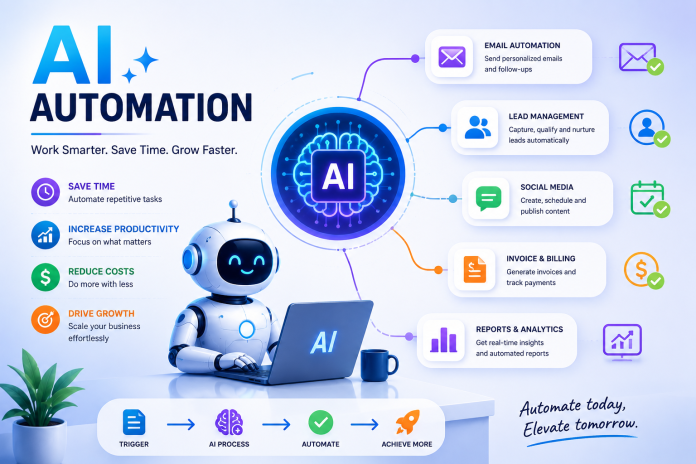
Automating repetitive tasks is one of the most practical ways to use AI, freeing up time for more meaningful, high-value work. This tutorial walks you through the process of identifying automation opportunities and building your first AI-powered workflow, step by step.
Step 1: Identify Tasks Worth Automating
Before diving into any specific tool, start by identifying which tasks in your daily routine are good candidates for automation. Look for tasks that are:
- Repetitive: You perform the same task regularly, following a similar process each time
- Rule-based: The task follows clear, predictable logic rather than requiring nuanced judgment
- Time-consuming: The task takes up significant time that could be better spent elsewhere
- Low-risk: Mistakes in the automated process wouldn’t cause significant problems
Common examples include: sorting emails, updating spreadsheets, sending follow-up messages, transferring data between apps, and generating routine reports.

Step 2: Choose the Right Automation Tool
Several platforms make AI-powered automation accessible without requiring extensive technical expertise:
Zapier
Zapier connects different apps and platforms, allowing you to build automated workflows called “Zaps” that trigger actions based on specific events.
Make (formerly Integromat)
Make offers more advanced automation capabilities, allowing for complex, multi-step workflows connecting various business tools.
Native AI Features in Existing Tools
Many platforms you already use, such as email clients, project management tools, or CRM systems, now include built-in AI automation features worth exploring before adding new tools.
For beginners, starting with a tool like Zapier, which offers straightforward, visual workflow building, is often the easiest entry point.
Step 3: Set Up Your First Automated Workflow
Let’s walk through a simple example: automatically saving email attachments to a cloud storage folder.
- Choose your trigger: Select the event that starts your automation, such as “new email received with an attachment.”
- Connect your accounts: Link your email account and cloud storage account to the automation platform.
- Define the action: Specify what should happen when the trigger occurs, such as “save attachment to a specific folder.”
- Test the workflow: Run a test to ensure the automation works correctly before relying on it for actual tasks.
- Activate the automation: Once tested successfully, turn on the automation to run continuously in the background.
Step 4: Incorporate AI-Powered Steps
Beyond simple trigger-and-action automations, many platforms now allow you to incorporate AI-powered steps directly into your workflows. For example:
- Automatically categorizing incoming emails using AI to analyze content and sentiment
- Generating draft responses to common customer inquiries before routing them for human review
- Summarizing long documents or meeting transcripts automatically as part of a larger workflow
- Extracting key data points from unstructured text, such as invoices or customer feedback
These AI-powered steps add intelligence to your automations, allowing them to handle more nuanced tasks beyond simple rule-based triggers.
Step 5: Test and Refine Your Automation
After setting up your initial workflow, monitor its performance over time to ensure it’s working as expected. Look for:
- Accuracy issues: Are AI-powered steps producing correct, relevant results?
- Edge cases: Are there scenarios your automation doesn’t handle well that need additional logic?
- Efficiency gains: Is the automation actually saving you meaningful time compared to manual processes?
Refine your workflow based on these observations, adjusting triggers, actions, or AI-powered steps as needed to improve performance.
Step 6: Scale Your Automation Efforts
Once you’re comfortable with basic automations, consider expanding to more complex, multi-step workflows that combine multiple tools and AI-powered steps. For example, you might build a workflow that automatically captures new leads from a web form, uses AI to qualify and score them, updates your CRM, and sends a personalized follow-up email – all without manual intervention.
Practical Automation Examples to Try
Email Management
Automatically sort, categorize, and prioritize incoming emails based on content and sender, reducing time spent manually organizing your inbox.
Social Media Scheduling
Automate the process of drafting, scheduling, and posting social media content across multiple platforms based on a content calendar.
Customer Support Triage
Use AI to automatically categorize and route customer support inquiries to the appropriate team member based on the nature of the request.
Data Entry and Reporting
Automatically pull data from various sources into a centralized spreadsheet or dashboard, reducing manual data entry and reporting work.
Common Challenges When Automating Tasks
- Over-automating too quickly: Trying to automate too many processes at once can lead to confusion and difficulty troubleshooting issues.
- Insufficient testing: Failing to thoroughly test automations before relying on them can lead to errors going unnoticed.
- Lack of monitoring: Automations can break due to changes in connected apps or platforms, so periodic monitoring remains important.
- Overlooking edge cases: Automations built for typical scenarios may not handle unusual situations well without additional logic.
Best Practices for Successful AI Automation
- Start small with simple, low-risk automations before tackling more complex workflows.
- Document your automations so you and your team understand how each workflow functions.
- Regularly review and update automations as your processes or tools change over time.
- Build in human oversight for critical processes, particularly those involving customer-facing communications or financial transactions.
Final Thoughts
Automating tasks with AI can significantly improve efficiency by handling repetitive, rule-based work, freeing up time for more strategic and creative tasks. By starting with simple, well-tested automations and gradually incorporating more sophisticated AI-powered steps, you can build a personalized automation system that genuinely improves your daily workflow.
As automation tools continue to incorporate more advanced AI capabilities, the potential for streamlining both personal and business processes will only continue to grow.
Frequently Asked Questions
- Do I need technical skills to automate tasks with AI?
No. Many automation platforms, like Zapier, offer visual, no-code interfaces that make building automated workflows accessible without programming knowledge. - What types of tasks are best suited for automation?
Repetitive, rule-based, time-consuming tasks with predictable logic are typically the best candidates for automation. - How do I know if my automation is working correctly?
Regularly monitor your automation’s performance, checking for accuracy issues, unhandled edge cases, and whether it’s actually saving meaningful time compared to manual processes. - Can AI automation handle complex, nuanced tasks?
AI-powered automation steps can handle increasingly nuanced tasks, such as categorization or summarization, though highly complex decisions often still benefit from human oversight. - What’s a good first automation to try as a beginner?
Simple automations, like automatically saving email attachments or sorting incoming messages, are good starting points for beginners to build confidence before tackling more complex workflows.